SharePoint lists are very powerful and we often need to export list data for our customers. One of the best option to achieve that is by PowerShell. So in this blog post we will cover how to export list in SharePoint via PowerShell. After exported to CSV, it’s easy to convert to an Excel format and do whatever you want. It’s important to say that this script will work on SharePoint Server On-Premises and you will need to enter the server to run it.
But why using a PowerShell if we can do that by the UI? Well, I need to agree with you. What I can answer about that? Basically, you can schedule exporting activities, you can take leave the script running on long lists without short timeouts, etc.
In case you want to test SharePoint e-mail settings with PowerShell, you can achieve that by sending a dummy e-mail to yourself by running a simple PowerShell script. In this way you can ensure your SMTP settings are good and all SharePoint notifications or coding solutions that send e-mails will work.
It’s important to test it during the configuration of a new Farm. The steps for configuring it can be found on Microsoft docs. Or maybe if you need to troubleshoot the e-mail features in your SharePoint solutions. SharePoint has many automated alerts that work with Workflows, Approval processes and Access control forms.
PowerShell script for testing SharePoint e-mail settings
The script is pretty straightforward and you will need to update just two lines. One with the right e-mail going to receive the message and the Site Collection URL that is going to trigger the message.
That’s it! I hope this script can help you when you want to test SharePoint e-mail settings with PowerShell. Also on creating new solutions for monitoring your e-mail settings on the SharePoint farms you happen to work with.
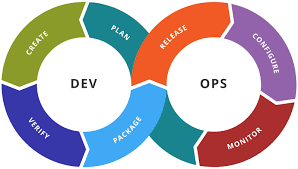
Have you ever imagined a world where Dev and Ops become DevOps? Well, I must say this world is real and we are living on it right now! That’s why I wrote this post to try to discuss The Principles of DevOps. The content was based on what I learned after reading the book The DevOps Handbook available on Amazon and after working in a DevOps role for more than one year. I’m also planning to write a series of posts to deep dive better in some concepts. So let’s go!
Basically, DevOps is based on three Principles:
At first, the Principles of Flow;
Second, the Principles of Feedback;
Last but not least, the Principles of Continual Learning.
Each one of them represents important steps and actions that should be taken by its practitioners. Always looking to improve their processes and deliver more reliable systems.
DevOps is more about a culture and a way of thinking, not about technologies. So you won’t see in this post content targeting specific applications like Azure DevOps ones I have written before.
Hey guys, today’s post is just a quick one in which I would like to make an announcement. I have created a tool in the past few weeks just to help me and maybe you when you need to remove duplicated of a string or transform in a comma separated list. For that, you transform your text with String List Wizard tool. You can access the Tool by clicking on the link below:
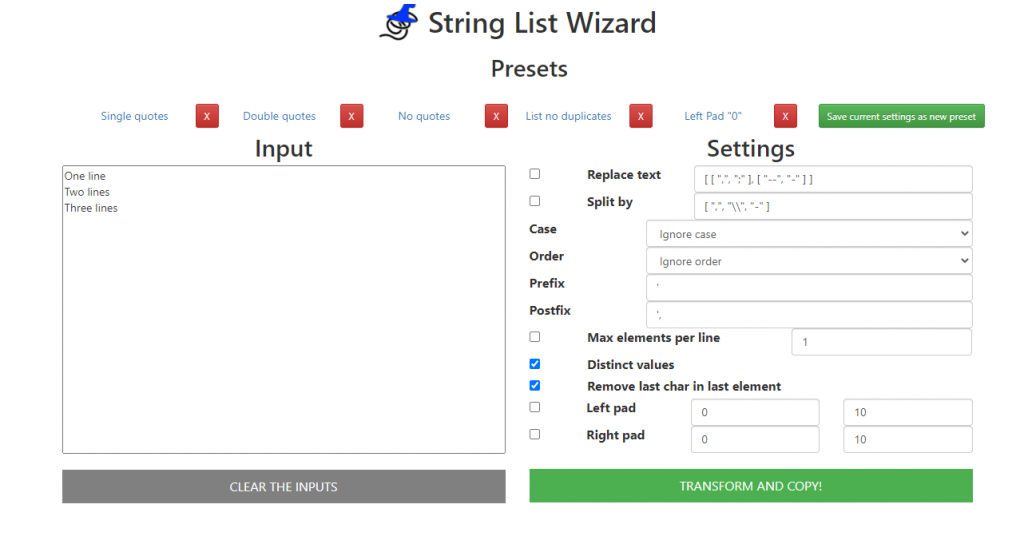
The Tool is basically a PWA in which helps you on transforming some strings into something else. The idea is to save your time and be more productive, because you might need to remove the duplicated elements of a list of words or numbers, or even you want to transform them into something else like you would do with macro. Here you can find some presets for the most common use cases like the ones below:
String List Wizard main page
String List Wizard Use cases
Imagine you have a long Excel list and you want to remove the duplicate cases, so you can copy all cells, paste them on the Input field, select “List no duplicates” presets and that’s it! If you work with SQL and you want to generate a statement of IDs in one single line separating each one by comma, then just paste them on the Input field, select “Single quotes” or “No quotes” presets and that’s it! Also you can use define your own presets that will be saved to be used later.
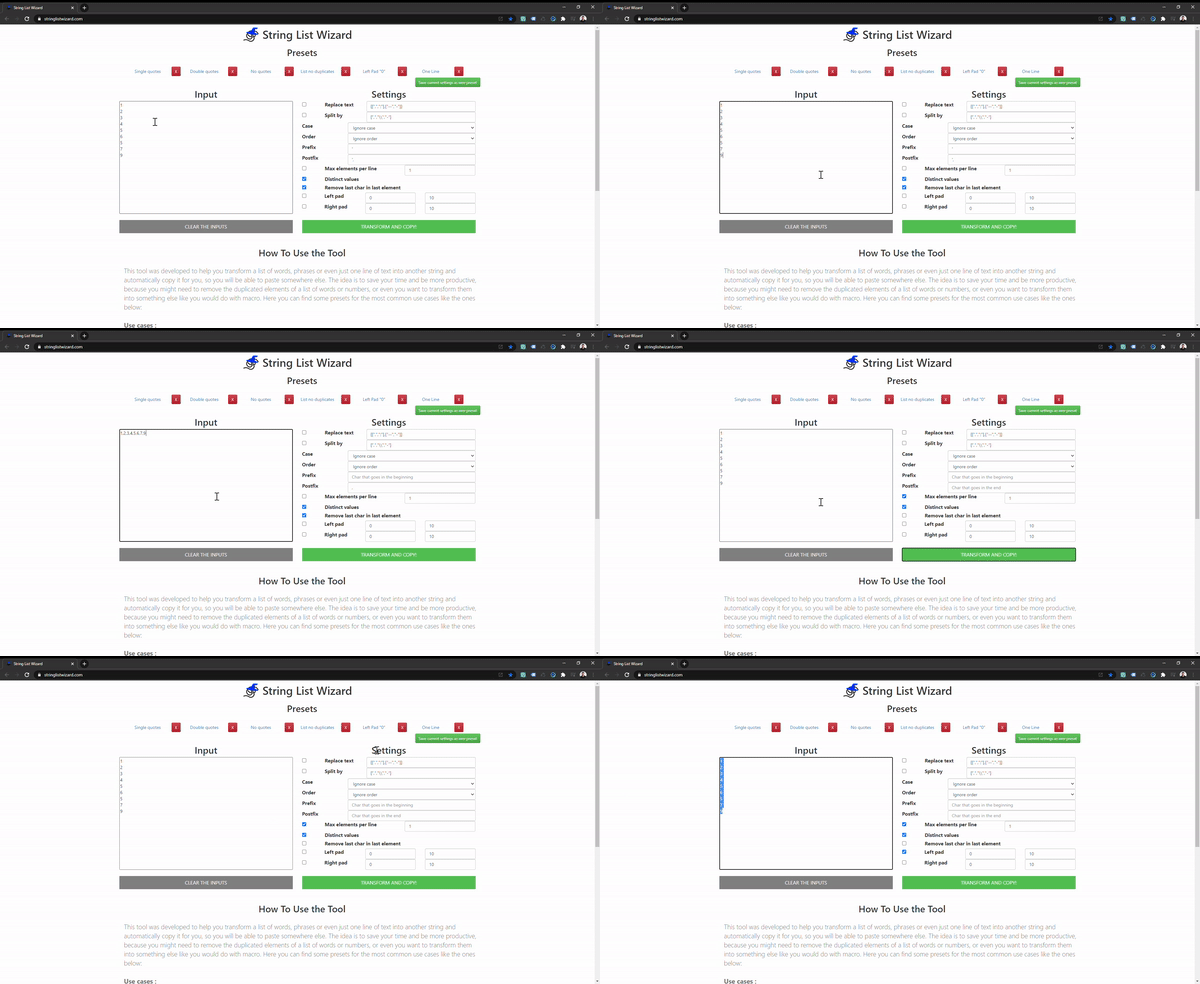
You can see how it works here:
String List Wizard demonstration
Options for your productivity
Replace text: this option allows you to replace characters using an array like parameters. Let’s say you want to replace every ‘-‘ with ‘_’ and every ‘,’ with a ‘;’. Then you can just configure something like [[“-“,”_”],[“,”,”;”]]
Split by: this options enables you to split the input based on some characters. A good example can be a phrase like ‘(DATA1)\\(DATA2)’ and you want to split each element in one line. So you can go ahead and configure something like [“(“,”\\”,”)”].
Case: this one defines if you will change the case, make everything uppercase or lowercase.
Order: this one defines if you will change the order and sort them by ascending or descending.
Prefix: the prefix will be inserted in the beginning of each element.
Postfix: the post will be appended to the end of each element.
Max elements per line: this options let’s you define how many elements will be grouped in each line.
Distinct values: self-explaining, but basically this one helps you on removing duplicating values.
Remove last char in last element from block: for those cases when you have one unnecessary character in the end of the transformation, you can check that and remove that last annoying char
Left pad: let’s you add characters of the beginning to the element until a length limit you define.
Right pad: let’s you add characters to the end of the element until a length limit you define.
Even more you can transform your text with String List Wizard in an app-like experience, since this is a progressive web app. In other words, you can add it to your cellphone or computer and use it as an App. It’s going to store each one of your settings on your machine and give flexibility to customize and reuse them when you reopen to the tool!
This blog post will cover how to batch insert items in SharePoint with Power Automate. Our Flow will explore the SharePoint REST API calling the Batch endpoint and inserting 1000 items per time. For every Batch request made, you can add multiple Changesets up to 1000 Changeset requests. Likewise, for each Changeset, you can only add up to 1000 requests. That’s why our example will try to insert 1000 items per request just to make things simple.
In the tests I have made, using this Flow we were able to insert 5000 items in 16 minutes. All of my tests were executed in a Free Microsoft Flow account. In the other hand you probably may experience a better performance if you have a licensed account. Consequently, using a licensed account, you will be able to read more than 5000 rows.
In addition to that, it’s important to say that our test is going to read data from an Excel file. Everything will be static like the filename and the table name from the file. But this doesn’t mean that you cannot do the same by passing dynamic values. If you create a flow that runs tied to a file creation event in SharePoint, you will get the data needed to make it dynamic and save your time with this automation.
This blog post will cover how to batch delete items in SharePoint with Power Automate. Our Flow will explore the SharePoint REST API calling the Batch endpoint and deleting 1000 items per time. For every Batch request made, you can add multiple Changesets up to 1000 Changeset requests. Moreover, for each Changeset, you can only add up to 1000 requests. That’s why our example will try to delete 1000 items per batch request just to make things simple.
In the tests I made, using this example we are able to delete 500 items in 2 minutes, 5.000 items in 12 minutes and 15.000 items in 40 minutes. All of my tests were ran in a Free Microsoft Flow account, so you probably may experience a better performance if you have a licensed account.
This blog post will cover how to drop messages in IBM MQ using dotnet core. The post is based on the other awesome post from dotnet cookbook which I recomend you to read! The objective here is to present an overview of the code, how to use the tracing logs for troubleshooting connections and how to add certificates to perform TLS connections, all of these using the library ibm-mq-client available in Nuget.
The code basically relies on some parameters for hostname, channel, queue manager, queue and port. Also there are some checks based on the name of those parameters to decide if they contain the pattern “.TLS” in the string. But if in your case you always use TLS on your connections, you can just remove that condition and let the SSL_CIPHER_SUITE_PROPERTY and SSL_CIPHER_SPEC_PROPERTY always available:
Using this code you should be able to drop messages, connect to the queues and achieve the result you want!
But if something goes wrong, you can always trace the messages made available by the library.
If you are like me and usually updates manually a spreadsheet to track your progress in a daily basis related to something like diet or spenditures, you will know that your spreadsheet may become very long. That’s why I created an small script to allow me jump to current date cell on Open in Google Sheets automatically.
The script will run like a macro and after a few moments you have opened the spreadsheet, it will focus the correct cell!
This blog post will teach you on creating Scheduled Azure WebJobs. The WebJobs are a method to run background tasks in Azure just like Windows Services. These Web Jobs are tied to Azure App Services and can be Continuous or Triggered.
The Continuous type will trigger as soon as it is deployed and can be debugged. Usually the developer controls it’s execution in an endless loop. In adition to that, it runs on all instances that your web app runs. As a draw back, it must have the feature AlwaysOn enabled. Basically, if you have a cheap subscription, you won’t be able to use that.
The Triggered option needs to be triggered manually or scheduled. This execution will only run on one instance of your application. Furthermore, it doesn’t allow remote debugging.
The following file types are supported to be a Web Job, according to Microsoft documentation:
SharePoint relies on Timer Service and Admin Service to run and manage its tasks. As any Windows Service, sometimes we need to stop and start them. That’s why I wrote this post to share a script on how to restart Timer and Admin in SharePoint.
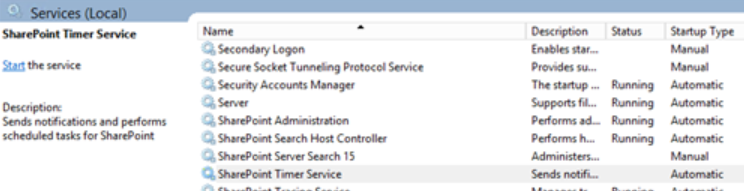
These services are present in a SharePoint Server, inside the Windows Services list. There you can see both SharePoint Administration and SharePoint Timer Service:
The Admin Service performs administrative tasks for Windows Services under the Local Admin Network rights;
The Timer Service sends notifications and performs scheduled tasks for SharePoint services. It must run with an Account with Admin rights to server.
Timer and Admin Services
Script to restart the timer and admin services
The script will load the SharePoint PowerShell dependencies and start by restarting the services in each machine present in the farm. This can throw an error if the Windows Servers are not properly configured to allow remote changes to their services.
Finally, in the end we use some objects provided by the SharePoint DLL to ensure that every Timer service is online and available.
There are other services required to run SharePoint, but it depends on how you are exploring its features. Here is the list of possible mandatory services that you may face and even restart if you want (haha):
SharePoint Tracing;
SharePoint User Code Host;
SharePoint VSS Writer;
World Wide Web Publishing Service;
SharePoint Server Search.
That’s it! I hope this post can be helpful when you want to restart Timer and Admin in SharePoint. Also you may find useful other posts related to PowerShell in the blog posts available.
Wiliam is from Porto Alegre, Brazil, currently working as DevOps Engineering Advisor at Dell EMC. He has been working with Microsoft technologies for almost ten years with one year gap studying abroad in Japan attending the Science without Borders program from the Brazilian government. Also he is MCSE Productivity, a SharePoint lover.
Nowadays he is investing the most part of his time on exploring GitLab and Azure DevOps features and helping the company to develop a DevOps culture among its colleagues.
In addition of that, he spends some time on learning Japanese, doing CrossFit and playing real-time strategy games like Age Of Empires. Read More…
This website uses cookies to improve your experience. We'll assume you're ok with this, but you can opt-out if you wish. Cookie settingsACCEPT
Privacy & Cookies Policy
Privacy Overview
This website uses cookies to improve your experience while you navigate through the website. Out of these cookies, the cookies that are categorized as necessary are stored on your browser as they are essential for the working of basic functionalities of the website. We also use third-party cookies that help us analyze and understand how you use this website. These cookies will be stored in your browser only with your consent. You also have the option to opt-out of these cookies. But opting out of some of these cookies may have an effect on your browsing experience.
Necessary cookies are absolutely essential for the website to function properly. This category only includes cookies that ensures basic functionalities and security features of the website. These cookies do not store any personal information.
Any cookies that may not be particularly necessary for the website to function and is used specifically to collect user personal data via analytics, ads, other embedded contents are termed as non-necessary cookies. It is mandatory to procure user consent prior to running these cookies on your website.









Recent Comments